New Windows Phone 7.1.1 SDK now available which supports 256mb devices
2012/03/27
2012/03/12
My first Windows Phone App goes live!
My fist Windows Phone 7+ app has now gone live and is available in the marketplace (And yes it’s written in VB.net 🙂 ).
What is it?
Well I decided to create an app to aid my failing memory. When I go to the pub and buy a round of drinks, between taking everyone’s orders and getting to the bar I tend to forget most of them.
Introduce: My Round

My Round Loading Page image
It will allow you to take peoples orders and remember the drinks in case you wish to use them again. It was designed to be quick and simple to use.It could also be used for other “Lists”, e.g. taking food orders etc. It loads very quickly and you have a plus button in the application bar at the bottom to add drinks.
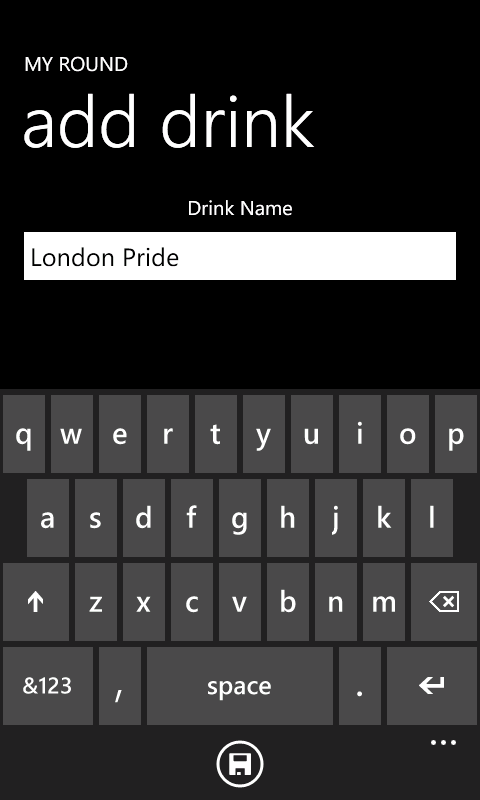
Add drink to you list
Once added the item will appear on the “Bar” page, plus add one to the “Drinks” page. You just need to swipe left and right to go between the two.
This is an example of the Bar Page.
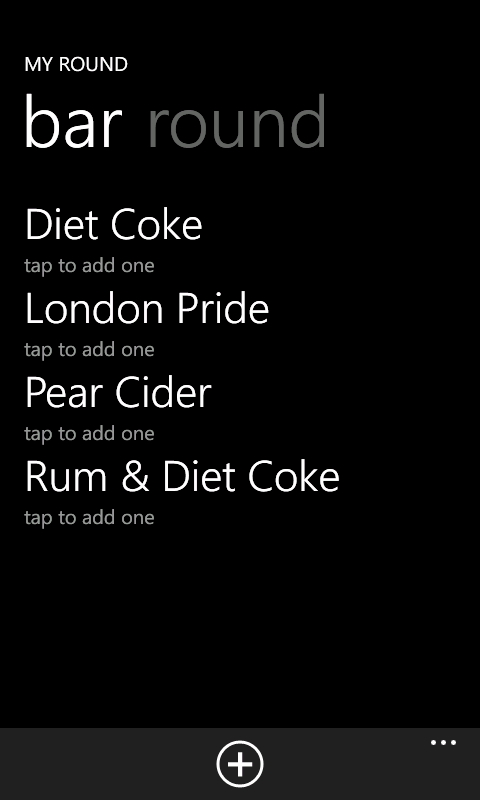
My Round Bar page UI
And the round page.
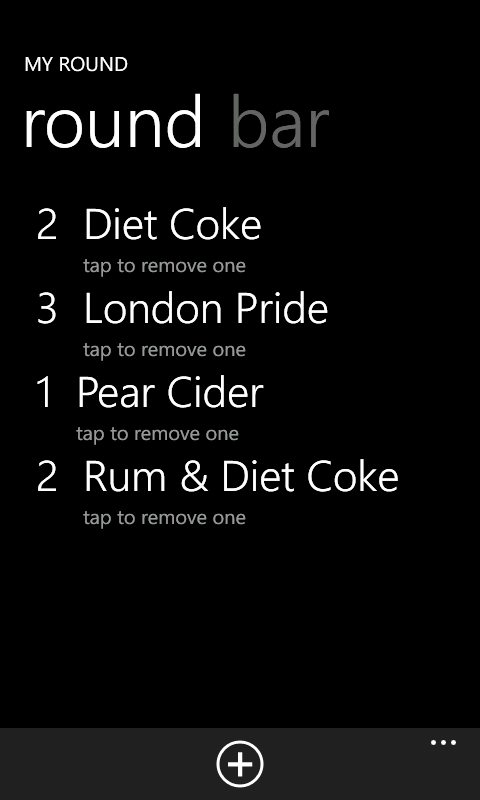
My Round, Round Page UI
Once a item is in the “Bar” list, just tap it to add it to the round. And on the round page, tap it to remove one of that item (or remove the item completely if there is only one left).
If you want to clear the round to start again. Go to the application bar menu and select clear. If you want to remove an item from the bar page, press and hold the item until a menu appears and select Remove.
To get hold of it, either search the market place for “My Round” or Click this link
Jas
2012/03/02
Databinding Fail on Windows Phone, if using a TextBox and an AppBar Button
An annoying bug (Or Feature) of developing for Windows Phone 7.1.
I’ve been writing a Windows Phone 7.1 app that uses the MVVM model. I have a view that allows me to enter some text and the only other thing on the view is an App Bar button which saves the text.
From what I can gather, the data binding will cause an update once the text box has lost focus. But in this case pressing the App Bar button does not cause the text box to lose focus, so the data update doesn’t happen.
In my case it was an easy work around to give the TextBox a name and update the view model from within the code behind.
TextBox Text="{Binding Path=SomeText, Mode=TwoWay}" x:Name="aTextBox" Grid.Row="1"
_viewModel.SomeText = aTextBox.Text

_viewModel.Save()
But it sort of defeats the object of data bound items.
2011/04/04
Dynamically creating pivot items and populating with data
I’ve spent the weekend trying to work out how to create the pages you see on a Pivot Page dynamically through code. It took a lot of web searching and trial and errors but I seem to have managed to get the basics of this worked out. I’m posting this to help other people who are trying to do the same thing. In this case it works, but if anyone else has a better/more efficient way of doing this I would be interested in looking at it.
The database/Web server has a directory full of images which the web service will pass back to the client using XML. Each image can belong to a image type. Each of these types will be a Pivot Item in the Pivot page. The list of images for each of these types will be displayed on each of these Pivot items.
I started by creating a pivot page and deleted any pivot items that where in the XAML. I then created the following Page Load event code:
    Private _client As New adminServiceReference.AdminServiceClient

    Private Sub PhoneApplicationPage_Loaded(ByVal sender As System.Object, ByVal e As System.Windows.RoutedEventArgs) Handles MyBase.Loaded
        ' setup the event handlers for retrieving image types and image lists
        AddHandler _client.GetImageTypesCompleted, AddressOf client_GetImageTypesCompleted
        AddHandler _client.GetImagesCompleted, AddressOf client_GetImagesCompleted

        ' request the image types
        Dim str As New StrType
        str.TokenGUID = GetToken()
        _client.GetImageTypesAsync(str)
    End Sub

    Private Function GetToken() As Guid
        Dim result As Guid
        If _phoneAppService.State.TryGetValue("token", result) Then
            Return result
        Else
            MessageBox.Show("Failed to retrieve token")
            Return Nothing
        End If
    End Function
This will call the GetImageTypes web service on the server (I will document these in another post)
Once the request has been completed, all the image types will be sent back to the client in XML format.
    ' Routine to handle the Get Image Types completed event.
    Private Sub client_GetImageTypesCompleted(ByVal sender As Object, ByVal e As adminServiceReference.GetImageTypesCompletedEventArgs)
        If e.Error Is Nothing Then
            Dim types = e.Result
            ' did the server side report an error?
            If types.ErrorMessage = "" Then
                ' no so loop through each Image type in the xml result
                For Each ele In types.xml...<type>
                    ' We need to create a new Pivot item for each image type
                    Dim p As New PivotItem
                    ' set the header name to the lowercase version of the type name
                    ' this is to fit in with the standard way of showing pivot items
                    p.Header = ele.Value.ToLower
                    ' add the pivot item to the pivot page
                    imagePivotControl.Items.Add(p)
                    ' now request all the images under of that type
                    Dim str As New StrType
                    str.text = ele.Value
                    _client.GetImagesAsync(str)
                Next
            Else
                ' The server side got an error so display the error
                ' to aid in debugging.
                MessageBox.Show(types.ErrorMessage)
            End If
        Else
            ' the request to the webservice caused an error so
            ' display this error to try and help debug the problem.
            MessageBox.Show(e.Error.Message)
        End If
    End Sub
The comments in the above code should lead you through the creation and titling of the PivotItem and used XML Literals a very handy feature in VB to make code more readable when interacting with XML. (This should be implemented in C#)
For each image type pivot item created it will also request all the images for that image type which the following code will handle.
    ' a routine to handle the Get Images completed event.
    Private Sub client_GetImagesCompleted(ByVal sender As Object, ByVal e As adminServiceReference.GetImagesCompletedEventArgs)
        ' Did the request cause an error
        If e.Error Is Nothing Then
            Dim imgs = e.Result
            ' Did the web server get an error while processing the request.
            If imgs.ErrorMessage = "" Then
                ' no error so start searching the PivotItems to find the one matching
                ' the type that we requested the images for.
                For Each pg As PivotItem In imagePivotControl.Items
                    If pg.Header.ToString = imgs.type.ToLower Then
                        ' We have a match so create a listbox item to hold the details
                        Dim lb As New ListBox
                        ' we need a counter to display next to the image
                        ' this is only temorary until we have an image there
                        Dim cnt As Integer = 0
                        ' Loop through all the image elements in the returned XML
                        For Each ele In imgs.xml...<image>
                            ' We need to create a grid to store the information in the
                            ' list box item this is the equivilent to the following XAML
                            '
                            '   <grid>
                            '       <Grid.RowDefinitions>
                            '           <RowDefinition Height="Auto"/>
                            '       </Grid.RowDefinitions>
                            '       <Grid.ColDefinitions>
                            '           <ColDefinition Width="100"/>
                            '           <ColDefinition Width="Auto"/>
                            '       </Grid.RowDefinitions>
                            '    </grid>

                            ' Create the grid object
                            Dim grd As New Grid
                            ' Create the row definition objec
                            Dim rowdef As New RowDefinition
                            ' the row definition object uses a object called gridlength
                            ' we create one of these and set it to Auto
                            Dim glen As New GridLength
                            glen = GridLength.Auto
                            ' we add the height information to the row definition
                            rowdef.Height = glen
                            ' now we add the row definition to the list of row definitions
                            ' in the grid object
                            grd.RowDefinitions.Add(rowdef)
                            ' Now we need to create a column definition
                            Dim coldef As New ColumnDefinition
                            ' the first column has a width of 100 pixels for now, it will
                            ' contain an image eventually and we can leave it set to auto.
                            coldef.Width = New GridLength(100)
                            ' add the column definition to the list of column definitions in
                            ' the grid object.
                            grd.ColumnDefinitions.Add(coldef)
                            ' we now create the second column definition to auto which is the
                            ' same as we used with the row definiton so lets just re-use
                            ' this object.
                            coldef = New ColumnDefinition
                            coldef.Width = glen
                            ' add the final column definition to the collection of column
                            ' definitions in the grid object.
                            grd.ColumnDefinitions.Add(coldef)

                            ' Now we start to add the data, first we create a textblock that
                            ' will be used to hold the count.
                            ' This is the equivilent to the following XAML.
                            '
                            '   <TextBox Grid.Column="0" Grid.Row="0" Text="{cnt.string}"/>
                            '
                            Dim tb = New TextBlock
                            ' we set the row and column of the textblock to make it appear in
                            ' the correct loctation
                            Grid.SetColumn(tb, 0)
                            Grid.SetRow(tb, 0)
                            ' set the text property of the text block to the current count
                            tb.Text = cnt.ToString
                            ' add the textblock to the children objects of the grid.
                            grd.Children.Add(tb)
                            ' Now we add a new text block which will display the name of the
                            ' image file on the server.
                            ' This is the equivilent to the following XAML
                            '
                            '   <TextBox Grid.Column="1" Grid.Row="0" Text="{ele.value}"/>
                            '
                            tb = New TextBlock
                            ' set the row and column information of the text block.
                            Grid.SetColumn(tb, 1)
                            Grid.SetRow(tb, 0)
                            ' pull the content of the image item ( <image>value</image> ) and
                            ' put this into the text property of the text block
                            tb.Text = ele.Value
                            ' add the text block to the child objects of the grid.
                            grd.Children.Add(tb)

                            ' Now we create the list box item to add to the list box in
                            ' the pivot item.
                            Dim lbi As New ListBoxItem
                            ' add the grid to the listbox item
                            lbi.Content = grd
                            ' and add the list box item to the list box
                            lb.Items.Add(lbi)
                            ' increment the counter
                            cnt += 1
                        Next
                        ' add the list box to the pivot item.
                        pg.Content = lb
                    End If
                Next
            Else
                ' the server produced and error so display to aid in debugging
                MessageBox.Show(imgs.ErrorMessage)
            End If
        Else
            ' the request caused and error so display this to aid in debugging
            MessageBox.Show(e.Error.Message)
        End If
    End Sub
Again I have commented the code to lead you through how the listbox and listbox items are created from the XML results and used to populate the pivot item for each image type.
Jas
2011/04/01
Client/Server experiment with MVC3 and Windows Phone 7 (Part 2.2 – Login Page)
After getting over the “Add Service Reference” problem mentioned in the previous post, the Login page was created:

Login Page
XAML file below:
https://vbmagic.wordpress.com/wp-admin/edit.php
<phone:PhoneApplicationPage
    x:Class="TyranntPhone.MainPage"
    xmlns="http://schemas.microsoft.com/winfx/2006/xaml/presentation"
    xmlns:x="http://schemas.microsoft.com/winfx/2006/xaml"
    xmlns:phone="clr-namespace:Microsoft.Phone.Controls;assembly=Microsoft.Phone"
    xmlns:shell="clr-namespace:Microsoft.Phone.Shell;assembly=Microsoft.Phone"
    xmlns:d="http://schemas.microsoft.com/expression/blend/2008"
    xmlns:mc="http://schemas.openxmlformats.org/markup-compatibility/2006"
    mc:Ignorable="d" d:DesignWidth="480" d:DesignHeight="768"
    FontFamily="{StaticResource PhoneFontFamilyNormal}"
    FontSize="{StaticResource PhoneFontSizeNormal}"
    Foreground="{StaticResource PhoneForegroundBrush}"
    SupportedOrientations="PortraitOrLandscape" Orientation="Portrait"
    shell:SystemTray.IsVisible="True">

    <!--LayoutRoot is the root grid where all page content is placed-->
    <Grid x:Name="LayoutRoot" Background="Transparent">
        <Grid.RowDefinitions>
            <RowDefinition Height="Auto"/>
            <RowDefinition Height="*"/>
        </Grid.RowDefinitions>

        <!--TitlePanel contains the name of the application and page title-->
        <StackPanel x:Name="TitlePanel" Grid.Row="0" Margin="12,17,0,28">
            <TextBlock x:Name="ApplicationTitle" Text="TYRANNT" Style="{StaticResource PhoneTextNormalStyle}"/>
            <TextBlock x:Name="PageTitle" Text="login" Margin="9,-7,0,0" Style="{StaticResource PhoneTextTitle1Style}"/>
        </StackPanel>

        <!--ContentPanel - place additional content here-->
        <Grid x:Name="ContentPanel" Grid.Row="1" Margin="12,0,12,0">
            <Grid x:Name="LoginGrid" Background="Transparent">
                <Grid.RowDefinitions>
                    <RowDefinition Height="Auto"/>
                    <RowDefinition Height="Auto"/>
                    <RowDefinition Height="Auto"/>
                    <RowDefinition Height="Auto"/>
                    <RowDefinition Height="Auto"/>
                </Grid.RowDefinitions>
                <Grid.ColumnDefinitions>
                    <ColumnDefinition Width="Auto"/>
                    <ColumnDefinition Width="*"/>
                </Grid.ColumnDefinitions>
                <TextBlock x:Name="usernameTextBlock" Grid.Row="0" Grid.Column="0" Text="Username" VerticalAlignment="Center" />
                <TextBox x:Name="usernameTextBox" Grid.Row="0" Grid.Column="1" Text="" VerticalAlignment="Center" />
                <TextBlock x:Name="passwordTextBlock" Grid.Row="1" Grid.Column="0" Text="Password" VerticalAlignment="Center" />
                <PasswordBox x:Name="passwordPasswordBox" Grid.Row="1" Grid.Column="1" Password="" VerticalAlignment="Center" IsEnabled="False" />
                <CheckBox x:Name="rememberMeCheckBox" Grid.Row="2" Grid.Column="1" Content="Remember Me" IsEnabled="False" />
                <Button x:Name="loginButton" Grid.Row="3" Grid.ColumnSpan="2" Content="Login" IsEnabled="False" />
                <Button x:Name="logoutButton" Grid.Row="4" Grid.ColumnSpan="2" Content="Logout" Visibility="Collapsed" />
            </Grid>
        </Grid>
    </Grid>

</phone:PhoneApplicationPage>
Then helper methods were created to adjust the page layout and to help with passing information between pages. Also, to help with the application tomb-stoning, the following routines were created in the App.xaml.vb page to store and retrieve information:
    Private Sub StoreDetails()
		' The PhoneApplicationService stores information while the application is "Active"
        Dim phoneAppService As PhoneApplicationService = PhoneApplicationService.Current
		' The IsolatedStorageSettings will store informaiton on the phones flash memory to be
		' retrieved after the app has shut down and re-started.
        Dim settings As IsolatedStorageSettings = IsolatedStorageSettings.ApplicationSettings

		' Pull the token GUID from temp storage in the phones memory and write into the
		' permanante storage on the phone's flash disk. Only if it exists
        Dim token As Guid
        If phoneAppService.State.TryGetValue("token", token) = True Then
            settings("token") = token
        End If
		' The same for the remembered username, this will allow the name to be recalled
		' after the app has been shut down in any way.
        Dim rname As String = ""
        If phoneAppService.State.TryGetValue("rememberedUsername", rname) = True Then
            settings("rememberedUsername") = rname
        End If
		' This stores the user group, for the moment, this should only really be done
		' if the app is paused to allow another app to run. If the app is exited the
		' user will have to log on again anyway.
        Dim group As String = ""
        If phoneAppService.State.TryGetValue("group", group) = True Then
            settings("group") = group
        End If
    End Sub

    Private Sub GetDetails()
		' The PhoneApplicationService stores information while the application is "Active"
        Dim phoneAppService As PhoneApplicationService = PhoneApplicationService.Current
		' The IsolatedStorageSettings will store informaiton on the phones flash memory to be
		' retrieved after the app has shut down and re-started.
        Dim settings As IsolatedStorageSettings = IsolatedStorageSettings.ApplicationSettings

		' The token us used to identify the user without the need for a username and password.
        Dim token As Guid
        If settings.TryGetValue("token", token) = True Then
            phoneAppService.State("token") = token
        End If
		' if the user has ticked the remember me box, this is the name they used to log on.
        Dim rname As String = ""
        If settings.TryGetValue("rememberedUsername", rname) = True Then
            phoneAppService.State("rememberedUsername") = rname
        End If
		' this will show if the user is a member of any special user group such as administrator
        Dim group As String = ""
        If settings.TryGetValue("group", group) = True Then
            phoneAppService.State("group") = group
        End If
    End Sub
I got the idea for this from the WP7 course at http://learnvisualstudio.net a good resource for learning most things .net.
Here is the code to handle the enabling and disabling of sections of the login page:
Partial Public Class MainPage
    Inherits PhoneApplicationPage

    Private _phoneAppService As PhoneApplicationService = PhoneApplicationService.Current

    ' Constructor
    Public Sub New()
        InitializeComponent()
    End Sub

    Private Sub EnableLogin(ByVal state As Boolean)
        usernameTextBox.IsEnabled = state
        passwordPasswordBox.IsEnabled = state
        loginButton.IsEnabled = state
    End Sub

    Private Sub usernameTextBox_TextChanged(ByVal sender As System.Object, ByVal e As System.Windows.Controls.TextChangedEventArgs) Handles usernameTextBox.TextChanged
        If usernameTextBlock.Text.Length > 3 And passwordPasswordBox.IsEnabled = False Then
            passwordPasswordBox.IsEnabled = True
            rememberMeCheckBox.IsEnabled = True
        ElseIf usernameTextBox.Text.Length <= 3 And passwordPasswordBox.IsEnabled = True Then
            passwordPasswordBox.IsEnabled = False
        End If
    End Sub

    Private Sub passwordPasswordBox_PasswordChanged(ByVal sender As System.Object, ByVal e As System.Windows.RoutedEventArgs) Handles passwordPasswordBox.PasswordChanged
        If passwordPasswordBox.Password.Length > 3 And loginButton.IsEnabled = False Then
            loginButton.IsEnabled = True
        ElseIf passwordPasswordBox.Password.Length <= 3 And loginButton.IsEnabled = True Then
            loginButton.IsEnabled = False
        End If
    End Sub

    Private Sub PhoneApplicationPage_Loaded(ByVal sender As System.Object, ByVal e As System.Windows.RoutedEventArgs) Handles MyBase.Loaded
        If RetrieveDetails() = True Then
            passwordPasswordBox.Focus()
            rememberMeCheckBox.IsChecked = True
        Else
            usernameTextBox.Focus()
        End If

    End Sub

    Private Sub PhoneApplicationPage_BackKeyPress(ByVal sender As System.Object, ByVal e As System.ComponentModel.CancelEventArgs) Handles MyBase.BackKeyPress
        Dim res As MessageBoxResult = MessageBox.Show("Are you sure you wish to exit", "Exit", MessageBoxButton.OKCancel)
        If res = MessageBoxResult.Cancel Then
            e.Cancel = True
        End If
    End Sub

    Private Sub StoreDetails()
        _phoneAppService.State("rememberedUsername") = usernameTextBox.Text
    End Sub

    Private Function RetrieveDetails() As Boolean
        Dim tmp As String = ""
        If _phoneAppService.State.TryGetValue("rememberedUsername", tmp) = False Then
            Return False
        Else
            usernameTextBox.Text = tmp
            Return True
        End If
    End Function

    Private Sub rememberMeCheckBox_Checked(ByVal sender As System.Object, ByVal e As System.Windows.RoutedEventArgs) Handles rememberMeCheckBox.Checked
            StoreDetails()
    End Sub

    Private Sub DeleteDetails()
        _phoneAppService.State.Remove("rememberedUsername")
    End Sub

    Private Sub rememberMeCheckBox_Unchecked(ByVal sender As System.Object, ByVal e As System.Windows.RoutedEventArgs) Handles rememberMeCheckBox.Unchecked
        DeleteDetails()
    End Sub

End Class
Now that this infrastructure is in place we get to the good bit, consuming the login service. The following routines were created to handle the login button click event and code to handle the call back for the login service.
    Private Sub loginButton_Click(ByVal sender As System.Object, ByVal e As System.Windows.RoutedEventArgs) Handles loginButton.Click
        Dim client As New userServiceReference.UserServiceClient
        AddHandler client.LoginCompleted, AddressOf client_LoginCompleted
        Dim login As New userServiceReference.LoginType
        login.Username = usernameTextBox.Text
        login.Password = passwordPasswordBox.Password
        client.LoginAsync(login)
        EnableLogin(False)
        If rememberMeCheckBox.IsChecked = True Then
            StoreDetails()
        End If
    End Sub

    Private Sub client_LoginCompleted(ByVal sender As Object, ByVal e As userServiceReference.LoginCompletedEventArgs)
        If e.Error Is Nothing Then
            Dim res As userServiceReference.TokenType = e.Result
            If res.errorMessage <> "" And res.errorMessage <> "fail" Then
                MessageBox.Show(res.errorMessage)
                EnableLogin(True)
            ElseIf res.errorMessage = "fail" Then
                MessageBox.Show("Username/Password incorrect")
                EnableLogin(True)
            Else
                _phoneAppService.State("token") = res.TokenGUID
                _phoneAppService.State("group") = res.UserGroup
                NavigationService.Navigate(New Uri("/pages/MemberPivotPage.xaml", UriKind.Relative))
                loginButton.Visibility = Windows.Visibility.Collapsed
                logoutButton.Visibility = Windows.Visibility.Visible
            End If
        Else
            MessageBox.Show(e.Error.Message)
            EnableLogin(True)
        End If
    End Sub
The contents of the username and password from the boxes on the page are used to generate a login type which is defined in the web service but I’ll re-show here:
<DataContract()>
Public Class LoginType

    <DataMember()>
    Public Property Username() As String

    <DataMember()>
    Public Property Password() As String

End Class
Then the callback routine to handle the completed login web service call was created and an event handler put into place. Then the ASYNC version of the service (Which is the only one available on Silverlight for Windows Phone) is called and the UI is changed to stop the user from trying to log in twice.
At the server end, the Membership service will attempt to validate the credentials. (A side note: To add a new user, you need to register on the website. Which is all handled automatically if you create an MVC3 website rather than a blank project.)
When the service returns the result of the login, firstly the app checks to see if the e.Error object has been set, this will indicate something went wrong with the service call and for now, it will just display the error message in a message box on the phone (Example of this is a timeout). Next the app will have a look at the returned object which is a TokenType which again is defined in the web service and I’ve shown again below:
<DataContract()>
Public Class TokenType

    <DataMember()>
    Public Property UserGroup() As String

    <DataMember()>
    Public Property TokenGUID() As Guid

    <DataMember()>
    Public Property errorMessage() As String

End Class
The errorMessage property of the TokenType class is used to pass back in the login failed for a username/password error. Basically if errorMessage is “” then everything went OK. If it contains the text “fail” then the username/password combination isn’t valid so the phone app will display that in a message box and reset the display to allow the user to attempt to log on again. If an exception occurred during the login process this is captured by the service and put into the errorMessage property. The phone app will check this and for now display that error message to aid in debugging.
If everything went well, then there should be a GUID in the TokenGUID property which will be used from that point onwards to identify that user. Later I will make every attempt to access the services change this GUID and pass the new one back. I will also add a time out so that the app can get the user to re-login after a period of inactivity has occurred.
If the login was successful we then enable a Logout button and collapse the login button and navigate to the “Member” section of the app using the following command:
NavigationService.Navigate(New Uri("/pages/MemberPivotPage.xaml", UriKind.Relative))
Next post on this experiment will be about what happens on this page.
2011/03/28
Client/Server experiment with MVC3 and Windows Phone 7 (Part 2.1 – A few problems)
The back end code was very basic and really only like it is to allow me to start attempting to write a client which will consume services.
Switching over to the Windows Phone 7 development, I hit my first problem. I created a VB.Net Windows Phone application and tried to add a Service Reference to the project. I gave the URL of the service that I created in the previous entry and it came back with the correct information. I then named the service and clicked the Ok button. A few seconds later I started to get errors and warnings. The main error is shown here:
Custom tool error: Failed to generate code for the service reference
One of the things that seemed to cause issues is the service definition using wsHttpBinding, but after double checking, I had used basicHttpBinding which is currently the only supported binding for Windows Phone 7
Initially, I thought this was a VB.Net problem, but after some searching there were a few C# users out there with the same issue. Most of them had one thing in common. They had Visual Studio 2010 Ultimate edition installed. I then found someone who mentioned that the Visual Studio Express edition does not have this issue. So I un-installed Ultimate from my laptop (Which took me a whole weekend due to the amount of things that got installed, think before clicking complete in future 😉 ) and then went to download Visual Studio 2010 Express edition. Once this was installed I then re-installed the Windows Phone 7 SDK and the VB extension to the SDK and hit my second problem.
This first release of Visual Basic support for the Windows Phone Developer Tools requires that you have Visual Studio 2010 Professional or higher, and does not yet support Visual Studio 2010 Express for Windows Phone
So stopped there as well. At this point I was starting to get annoyed at the lack of VB.net support in general after the promise of joint evolution of the two languages. So I went back to web searching to try to see if there was any other solutions apart from the manual approach. I found that one person mentioned that it didn’t work in Visual Studio 2010 Ultimate bit DID work in Visual Studio 2010 Professional. So back to installing software, This time Visual Studio 2010 Professional.
That done, I re-loaded the Windows Phone 7 project and right clicked the service and selected Update Service Definition. I waited with bated breath to see if it would work and it did. A huge sigh of relief I went on to start coding a client side of the learning project.
Note to self: “Just because you have an MSDN subscription which includes the Ultimate version of visual studio, it doesn’t mean that you should install it!”
…To be continued
Jas

 VB Magic