If you are ever needing to get a legacy application (By Legacy I mean an application not designed to run in Azure but can run on a windows platform) then this framework is invaluable. It will allow you to host almost anything that can be extracted into a directory/installed and run. Including java applications (For example those hosted in application servers like JBoss and Tomcat). And most of the configuration is done via the ServiceConfiguration.csfg file.
Just expanded my PC setup to include a second monitor which is a different resolution to the primary monitor. I wanted an RDP session to open up full screen on my second monitor. Easy, I thought. Loads of people would want to do that…It seems not.
Firstly I’ve not found a way of getting the remote desktop session to start full screen on the second monitor permanently. There seems no way in the dialogue box for remote desktop to do this.
I spent around twenty minutes googling to try and find a solution; but all solutions to this seem linked to an older version of remote desktop and do not work with this latest one.
I then played around with the remote desktop configuration and found a solution which works but you have to drag the window and maximise it each time.
In the display settings set the screen resolution to the dimensions of the second monitor. (Make sure to save this setting before connecting otherwise it will revert back next time you open it)
Launch the session and log into the remote account.
The window should appear on your primary monitor. Drag this window to the second monitor and then maximise it. It will then be full screen rather than windowed.
If anyone knows a way of doing this permanently, then please drop a comment.
My fist Windows Phone 7+ app has now gone live and is available in the marketplace (And yes it’s written in VB.net 🙂 ).
What is it?
Well I decided to create an app to aid my failing memory. When I go to the pub and buy a round of drinks, between taking everyone’s orders and getting to the bar I tend to forget most of them.
Introduce: My Round
My Round Loading Page image
It will allow you to take peoples orders and remember the drinks in case you wish to use them again. It was designed to be quick and simple to use.It could also be used for other “Lists”, e.g. taking food orders etc. It loads very quickly and you have a plus button in the application bar at the bottom to add drinks.
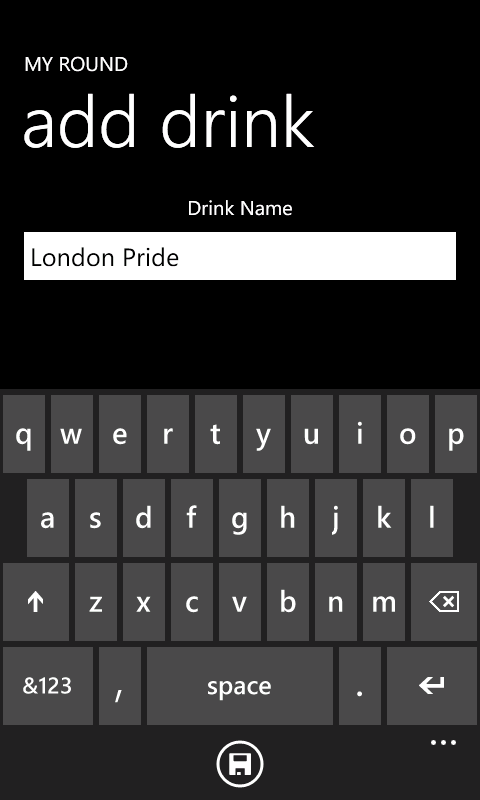
Add drink to you list
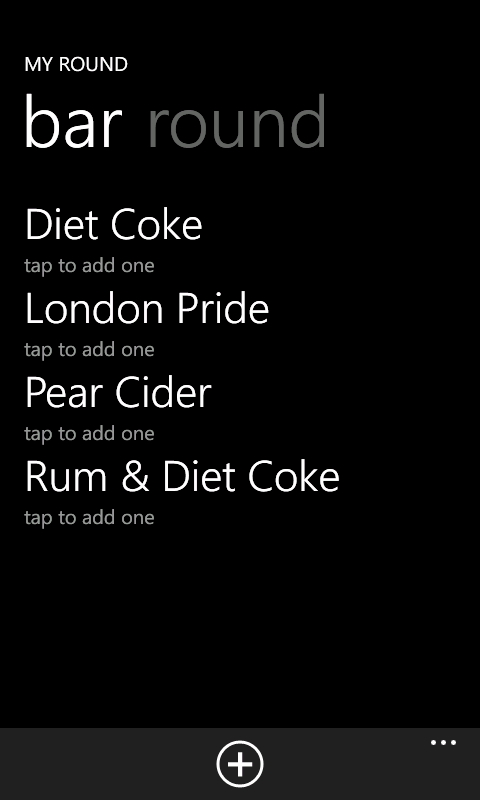
Once added the item will appear on the “Bar” page, plus add one to the “Drinks” page. You just need to swipe left and right to go between the two.
This is an example of the Bar Page.
My Round Bar page UI
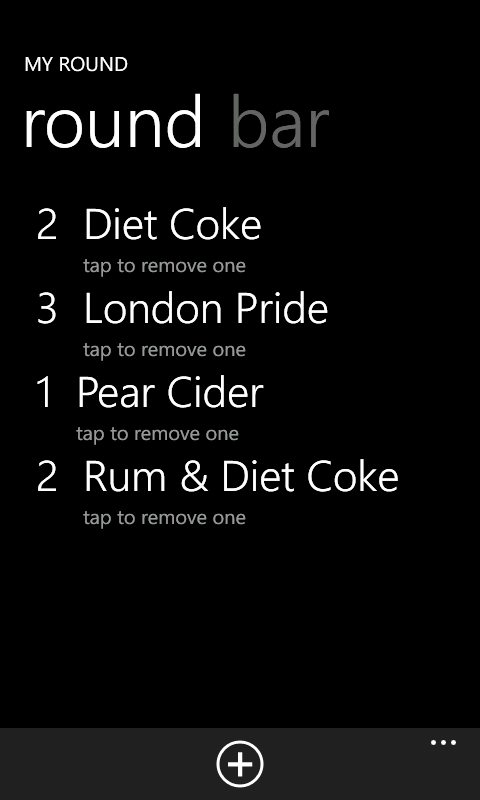
And the round page.
My Round, Round Page UI
Once a item is in the “Bar” list, just tap it to add it to the round. And on the round page, tap it to remove one of that item (or remove the item completely if there is only one left).
If you want to clear the round to start again. Go to the application bar menu and select clear. If you want to remove an item from the bar page, press and hold the item until a menu appears and select Remove.
To get hold of it, either search the market place for “My Round” or Click this link
An annoying bug (Or Feature) of developing for Windows Phone 7.1.
I’ve been writing a Windows Phone 7.1 app that uses the MVVM model. I have a view that allows me to enter some text and the only other thing on the view is an App Bar button which saves the text.
From what I can gather, the data binding will cause an update once the text box has lost focus. But in this case pressing the App Bar button does not cause the text box to lose focus, so the data update doesn’t happen.
In my case it was an easy work around to give the TextBox a name and update the view model from within the code behind.
I recently needed to look at table sizes in SQL azure. I had to work out what the biggest table sizes were and see if there is a way to make them smaller. After a bit of searching on the web, I came across this blog entry
Which had this bit of SQL which worked really well.
select
      sum(reserved_page_count) * 8.0 / 1024
from
      sys.dm_db_partition_stats

GO

select
      sys.objects.name, sum(reserved_page_count) * 8.0 / 1024 as S
from
      sys.dm_db_partition_stats, sys.objects
where
      sys.dm_db_partition_stats.object_id = sys.objects.object_id

group by sys.objects.name order by S DESC
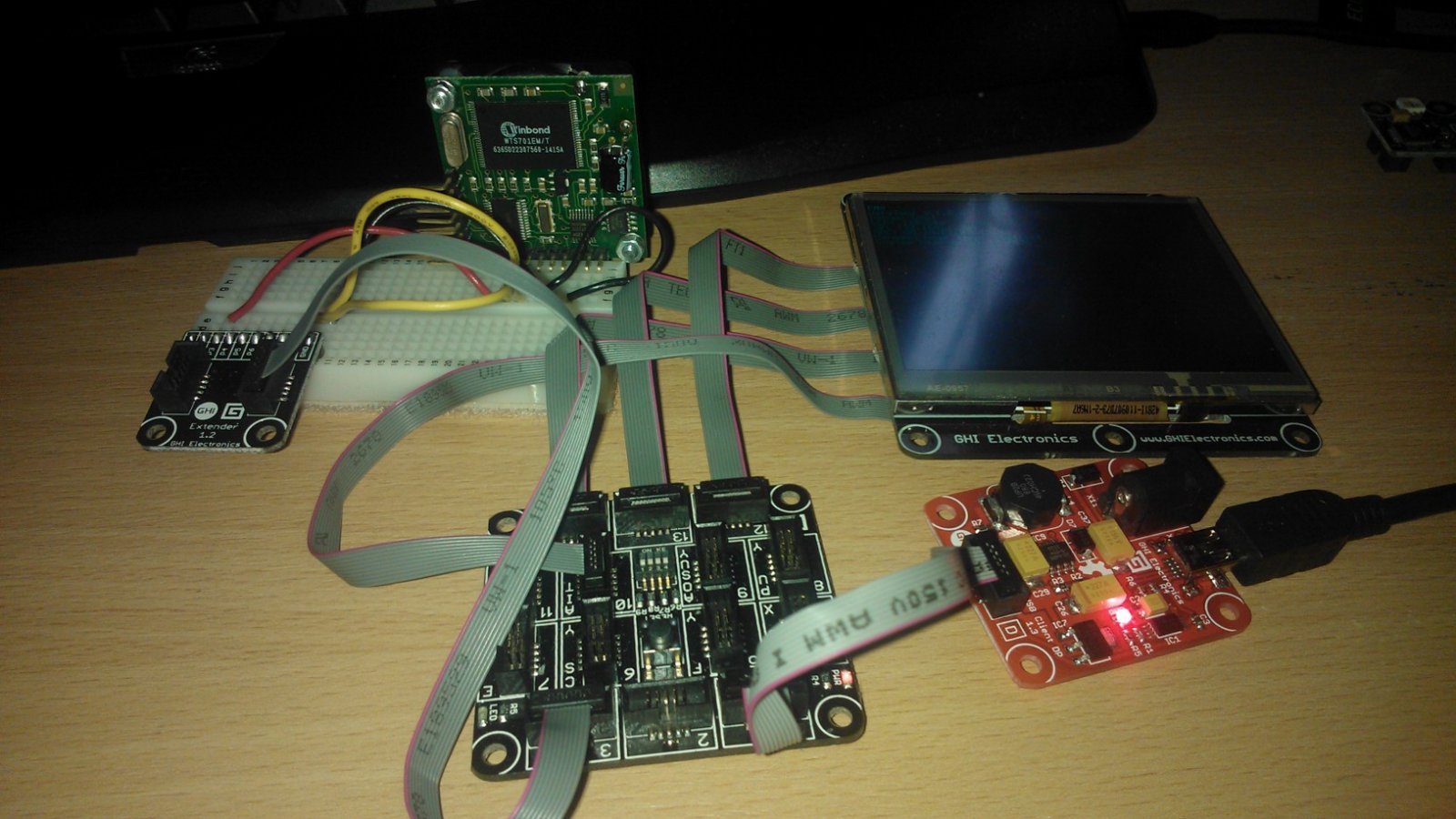
So with a breadboard the new soldered Extender module and some connector wires and pull up resistors; it was all connected together and powered on. No magic blue smoke meant that things may actually be working ;-).
Fez Spider with SP03
The device uses either serial or I2C communication to communicate which is supported by the FEZ Spider. It took a lot of looking around and a couple of questions on the Tiny CLR forum but I managed to make a class that allowed the communication between the two and managed to make it speak for the first time. Below is that class:
using System;
using Microsoft.SPOT;
using Microsoft.SPOT.Hardware;

namespace FEZ_Speak
{
    class SP03
    {
        // initialse the device object
        private I2CDevice _sp03;

        // setup constants
        private const byte SP03ADDRESS = 0x62;
        private const int SP03CLOCKRATE = 100;

        // setup default speaking paramaters
        private byte _volume = 0x00;
        private byte _speed = 0x03;
        private byte _pitch = 0x05;

        // Initialise the hardware
        public SP03()
        {
            I2CDevice.Configuration config = new I2CDevice.Configuration(SP03ADDRESS, SP03CLOCKRATE);
            _sp03 = new I2CDevice(config);
        }

        // Speech properties
        public byte Volume
        {
            get { return _volume; }
            set { _volume = value; }
        }

        public byte Speed
        {
            get { return _speed; }
            set { _speed = value; }
        }

        public byte Pitch
        {
            get { return _pitch; }
            set { _pitch = value; }
        }

        // Methods
        // Say something
        public void Say(string speech)
        {
            WaitForSpeechFinish();
            I2CDevice.I2CTransaction[] xActions = new I2CDevice.I2CTransaction[3];
            xActions[0] = I2CDevice.CreateWriteTransaction(GetSettings());
            xActions[1] = I2CDevice.CreateWriteTransaction(ConvertText(speech));
            xActions[2] = I2CDevice.CreateWriteTransaction(SayIt());
            if (_sp03.Execute(xActions, 1000) == 0)
            {
                Debug.Print("Failed to perform I2C transaction");
            }
        }

        private byte[] ConvertText(string text)
        {
            System.Text.UTF8Encoding encoding = new System.Text.UTF8Encoding();
            byte[] buffer = encoding.GetBytes(text);
            byte[] result = new byte[buffer.Length + 2];
            result[0] = 0;
            result[1] = 0;
            buffer.CopyTo(result, 2);
            return result;
        }

        private byte[] GetSettings()
        {
            byte[] speechConfig = new byte[] { 0, 0, _volume, _pitch, _speed };
            return speechConfig;
        }

        private byte[] SayIt()
        {
            return new byte[] { 0, 0x40 };
        }

        private void WaitForSpeechFinish()
        {
            bool speaking = true;

            byte[] request = new byte[1] { 0 };

            while (speaking)
            {
                byte[] response = new byte[1];
                I2CDevice.I2CTransaction[] xActions = new I2CDevice.I2CTransaction[2];
                xActions[0] = I2CDevice.CreateWriteTransaction(request);
                xActions[1] = I2CDevice.CreateReadTransaction(response);
                if (response[0] == 0)
                    speaking = false;
            }
        }
    }
}
And here is the code that consumed that class:
using System;
using System.Collections;
using System.Threading;
using Microsoft.SPOT;
using Microsoft.SPOT.Presentation;
using Microsoft.SPOT.Presentation.Controls;
using Microsoft.SPOT.Presentation.Media;
using Microsoft.SPOT.Touch;
using Microsoft.SPOT.Hardware;

using Gadgeteer.Networking;
using GT = Gadgeteer;
using GTM = Gadgeteer.Modules;
using Gadgeteer.Modules.GHIElectronics;

namespace FEZ_Speak
{
    public partial class Program
    {
        // This method is run when the mainboard is powered up or reset.
        void ProgramStarted()
        {
            SP03 speechUnit = new SP03();

            speechUnit.Say("Hello Tiny C L R.");
        }
    }
}
After running this a growly computer voice spoke the words. In case anyone doesn’t believe me, here is the evidence 😉
As I’m using the Gadgeteer/.Net Micro Framework, I’ve been forced to learn some more c# ;-).
I came across an issue where Multi-Dimensional arrays are not compatible with the micro framework.
Thanks to the help of Architect from the TinyCLR.com forums (See his blog link “Break Continue” in the blogroll to the right of the post), I’ve now been introduced to jagged arrays in C# which solved the issue.
This failed:
private char[,] maze = new char[20,20];
So I now use the following code to achieve the same thing:
 private char[][] maze = new char[20][];

// Stuff

        private void InitialiseMaze()
        {
            for (int lp = 0; lp <= 19; lp++)
            {
                maze[lp] = new char[20];
            }
        }
To see it in use, Here is a section of code used to populate the array from the code:
// Stuff

        private void LoadMaze()
        {
            // read in the text file and convert to a string.
            string path = _mazePath + @"\store\" + _currentLevel + ".map";
            byte[] rawBytes = _storageDev.ReadFile(path);
            char[] rawCharacters = System.Text.UTF8Encoding.UTF8.GetChars(rawBytes);
            string tmpMap = new string(rawCharacters);
            // Now split the text file into lines using the \r character from the text file
            // note this will leave the \n character at the end of each line
            string[] lines = tmpMap.Split('\r');
            // Get the header, removing the \n
            string header = lines[0].Trim('\n');
            // check maze version and the dimensions of the maze
            string[] bits = header.Split('|');
            string ver = bits[0];
            int width = int.Parse(bits[1]);
            int height = int.Parse(bits[2]);
            if (ver != "1.0")
            {
                throw new Exception("Maze version is incorrect");
            }
            for (int y = 1; y <= height; y++)
            {
                char[] row = lines[y].Trim('\n').ToCharArray();
                for (int x = 0; x < width; x++)
                {
                    maze[x][y-1] = row[x];
                }
            }
        }




 VB Magic